Deep Learning — Beginner
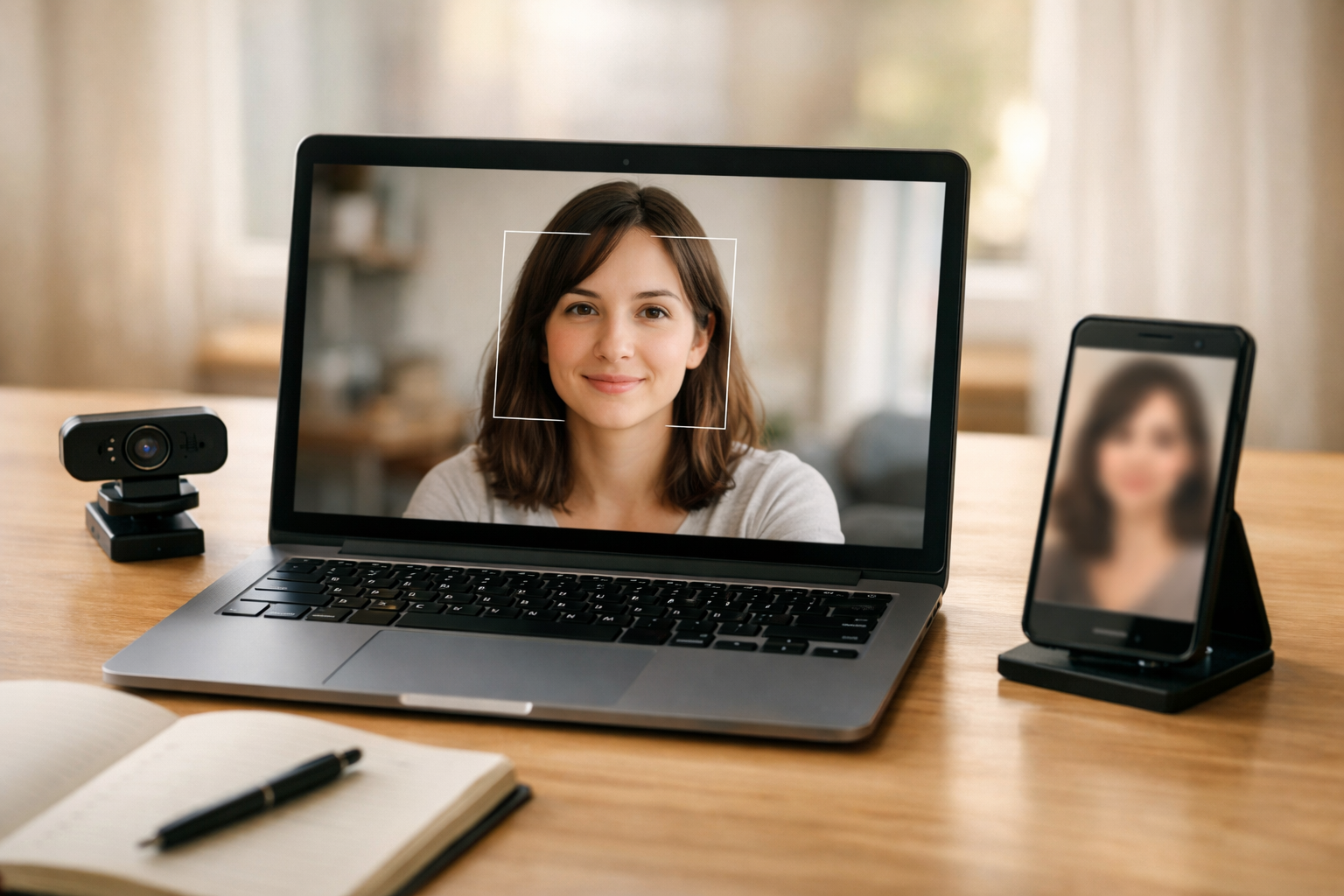
Build a real face-detecting camera filter from scratch—no experience needed.
This beginner course is a short, book-style journey where you build something useful: a smart camera filter that detects faces and applies a simple effect (like blur or pixelation). You do not need any prior knowledge of AI, programming, or data science. We start from first principles—what an image is, what a model does, and what “prediction” means—then gradually turn those ideas into a working project you can run on your own computer.
Deep learning can sound intimidating, but the core idea is simple: a model learns patterns from many examples so it can make a good guess on new inputs. In this course, the “input” is an image (or a video frame), and the “guess” is where faces are located. You’ll learn the difference between face detection (finding faces) and face recognition (identifying who someone is), and why that difference matters for privacy and responsible use.
Training deep learning models from scratch takes lots of data and computing power. For a first project, the smartest move is to use a pre-trained face detector—something already trained by experts—and focus on building the application around it. You’ll still learn the most important concepts: how to run a model, interpret confidence scores, tune thresholds, and handle mistakes.
Everything is broken into small, checkable steps. You’ll learn just enough Python to be productive: reading files, running scripts, handling simple errors, and organizing a small project. You’ll also learn what video processing is (a loop of frames), how performance works (speed, frame rate, latency), and how to make your results look stable and clean on screen.
Face-related projects deserve extra care. You’ll learn basic rules for consent, what not to build, and how to present your project responsibly. We focus on a privacy-friendly use case (like anonymizing faces) and include a final checklist so you can test and share your project safely.
You can begin immediately. If you’re ready to follow along and build the project, Register free. If you’d like to explore other beginner-friendly paths first, you can also browse all courses.
You’ll have a working, practical deep learning application you can demo: a camera filter that detects faces in real time and applies an effect. More importantly, you’ll understand the basic building blocks—data, model, prediction, and evaluation—so you can confidently tackle your next AI project.
Machine Learning Engineer, Computer Vision
Sofia Chen builds computer vision features for everyday products, from cameras to safety tooling. She specializes in teaching beginners with clear steps, practical checks, and real-world constraints. Her focus is helping learners ship small, working AI projects quickly and responsibly.
This course is about building something you can actually run: a camera “filter” that finds faces and then applies an effect (blur or pixelation) inside each face box. That’s it. No calculus, no intimidating theory dumps—just the core ideas you need to make the project work and to make good engineering decisions along the way.
Before we touch code, you’ll define the project in practical terms: what goes into your program (images from a file or frames from a webcam), what comes out (rectangles around faces), and what you change (the pixels inside those rectangles to create a filter). Then you’ll meet the three building blocks that appear in almost every deep learning product: data (pixels), a model (a pre-trained face detector), and predictions (boxes with confidence scores).
This chapter also sets expectations. A face detector is not “magic.” It can miss faces, find faces where none exist, and slow down depending on your hardware. Your job as the builder is to choose reasonable constraints (speed, accuracy, privacy) and verify that the result behaves well enough for your use case.
Finally, because face-related projects can be sensitive, you’ll learn simple safety and privacy rules: collect as little data as possible, avoid identity claims, and make it clear when and how the camera is used.
Practice note for Define the project: a camera filter that detects faces: document your objective, define a measurable success check, and run a small experiment before scaling. Capture what changed, why it changed, and what you would test next. This discipline improves reliability and makes your learning transferable to future projects.
Practice note for Understand inputs and outputs: pixels in, boxes out: document your objective, define a measurable success check, and run a small experiment before scaling. Capture what changed, why it changed, and what you would test next. This discipline improves reliability and makes your learning transferable to future projects.
Practice note for Meet the core building blocks: data, model, prediction: document your objective, define a measurable success check, and run a small experiment before scaling. Capture what changed, why it changed, and what you would test next. This discipline improves reliability and makes your learning transferable to future projects.
Practice note for Map the full workflow from camera to on-screen result: document your objective, define a measurable success check, and run a small experiment before scaling. Capture what changed, why it changed, and what you would test next. This discipline improves reliability and makes your learning transferable to future projects.
Practice note for Safety and privacy basics for face-related projects: document your objective, define a measurable success check, and run a small experiment before scaling. Capture what changed, why it changed, and what you would test next. This discipline improves reliability and makes your learning transferable to future projects.
Practice note for Define the project: a camera filter that detects faces: document your objective, define a measurable success check, and run a small experiment before scaling. Capture what changed, why it changed, and what you would test next. This discipline improves reliability and makes your learning transferable to future projects.
Practice note for Understand inputs and outputs: pixels in, boxes out: document your objective, define a measurable success check, and run a small experiment before scaling. Capture what changed, why it changed, and what you would test next. This discipline improves reliability and makes your learning transferable to future projects.
Practice note for Meet the core building blocks: data, model, prediction: document your objective, define a measurable success check, and run a small experiment before scaling. Capture what changed, why it changed, and what you would test next. This discipline improves reliability and makes your learning transferable to future projects.
Practice note for Map the full workflow from camera to on-screen result: document your objective, define a measurable success check, and run a small experiment before scaling. Capture what changed, why it changed, and what you would test next. This discipline improves reliability and makes your learning transferable to future projects.
A “smart filter” sounds like the camera is making artistic decisions. In reality, it’s a very practical pipeline: (1) capture an image, (2) detect something in the image, (3) apply an effect only where the detector says it should. The “smart” part is the detector.
For this course, your detector is a face detector. Its job is to answer a simple question for each frame: “Where are the faces?” It returns one or more rectangles (bounding boxes) around faces, often with a confidence score that says how sure it is. Your filter then uses those rectangles to blur or pixelate those regions while leaving the rest unchanged.
This is an important framing because it prevents common beginner mistakes. Many people try to apply the effect first and then detect faces, which makes detection harder (you’re hiding the very patterns the detector needs). Another common mistake is expecting perfect results. Lighting, motion blur, camera angle, sunglasses, masks, and background photos can all confuse a detector. Your goal is “works well enough” for a live camera demo, not flawless detection in every scenario.
At a high level, you can think of your application as two loops: an engineering loop and a runtime loop. The engineering loop is you improving thresholds, tweaking performance, and testing edge cases. The runtime loop is the webcam continuously producing frames while your code detects faces and draws boxes at a steady pace.
Deep learning vision projects feel less mysterious once you remember what an image is to a computer: a grid of numbers. Each tiny square is a pixel, and each pixel stores color information. Most images you work with have three color channels (red, green, blue), so each pixel is really three numbers. If your image is 640×480, that’s 307,200 pixels; with three channels that’s 921,600 values per frame.
Your camera filter will operate on these numbers. “Drawing a box” means changing some pixel values along the rectangle border (for example, setting them to bright green). “Blurring a face” means replacing pixel values in that region with averaged values so details disappear. “Pixelating a face” means shrinking the face region to a tiny version and scaling it back up, creating blocky squares.
Understanding inputs and outputs early makes debugging easier. Your input is typically a frame array (often a NumPy array) with a shape like (height, width, 3). Your output from the detector is a list of boxes like [x, y, w, h] or [x1, y1, x2, y2]. A very common mistake is mixing coordinate systems: some models return normalized coordinates (0 to 1), while others return pixel coordinates. Another common pitfall is color order: OpenCV often uses BGR instead of RGB. If colors look “wrong” (blue where red should be), that’s usually why.
Performance also starts here. Bigger frames mean more pixels to process, which can slow down detection. A practical trick is to run detection on a smaller copy of the frame, then scale boxes back up to the original size for drawing and filtering.
Deep learning is a way to learn patterns from examples using a neural network: a model with many layers that transforms input numbers into useful outputs. In everyday terms, it’s like training a very flexible pattern-finder. You show it many images labeled with what you care about (for face detection: “a face is here”), and it gradually learns what facial patterns look like across different people, poses, lighting, and backgrounds.
What makes it “deep” is the stack of layers. Early layers tend to learn simple visual features (edges, corners, texture). Later layers combine those into higher-level patterns (eye-like shapes, nose-like structures, face-like arrangements). You don’t program these features by hand; the training process discovers them.
In this course, you’re not starting by training a model. You will use a pre-trained face detector: someone else already did the expensive learning step. Your job is to integrate it into a real application. That’s what many real-world deep learning projects look like: you start with an existing model, then build reliable software around it.
Engineering judgement matters because models are not “truth machines.” A detector outputs probabilities or confidence scores, not certainty. Choosing a confidence threshold is a practical decision: a low threshold finds more faces but risks false positives (boxes on non-faces); a high threshold reduces false positives but may miss smaller or partially covered faces. You’ll make these tradeoffs visible later by checking speed and error cases.
Face detection and face recognition are often confused, and mixing them up can create both technical and ethical problems. Face detection answers: “Is there a face here, and where is it?” The output is boxes around faces. Face recognition answers: “Whose face is this?” The output is an identity label or a match score against known people.
This course focuses only on detection, not identity. That keeps the project simpler and safer. A detector doesn’t need a database of names, doesn’t try to identify anyone, and can run locally without storing personal information. From a privacy standpoint, detection can still be sensitive (you’re processing face imagery), but it’s significantly less intrusive than recognition.
Why this matters for engineering: detection models are typically trained to be general and fast, suitable for real-time video. Recognition models require higher-quality face crops, consistent alignment, and careful evaluation to avoid bias and misidentification. Trying to “upgrade” a detector into a recognizer by guessing identities is a common and risky mistake.
When you build your camera filter, keep your app’s promises clear. If it says “blur faces,” it should blur all detected faces consistently, not selectively. If it runs on a webcam, it should make it obvious when the camera is active. If you later share your project, document what it does and does not do: it detects face locations; it does not know who someone is.
There are two very different phases in deep learning: training and inference. Training is the learning phase. It requires lots of labeled examples, many iterations, and substantial compute. During training, the model adjusts internal parameters to reduce errors on the training data and (ideally) generalize to new data.
Inference is the usage phase. You feed new data (your webcam frames) into a trained model and get predictions (face boxes). Inference is what your camera filter does in real time, frame after frame. This distinction matters because beginners sometimes expect to “improve” a model simply by running it more. Inference does not learn; it only predicts.
In this course you’ll focus on inference, which is perfect for getting a working project quickly. Your practical tasks will include: installing a Python environment that can run OpenCV and a detector package; loading the pre-trained model weights; converting webcam frames into the expected input format; and interpreting the model’s output boxes.
Common inference mistakes include: forgetting to preprocess input (wrong size, wrong color order, missing normalization), misreading output formats, and ignoring runtime performance. Real-time video is demanding: if your pipeline takes 200 ms per frame, you’re at ~5 frames per second and the filter will feel laggy. A practical approach is to start with correctness on still images, then move to webcam, then tune speed by resizing frames, limiting the number of detections, or running detection every N frames.
Let’s map the full workflow from camera to on-screen result so you always know what you’re building. The pipeline is:
Now add constraints. Real-time vision systems are a balancing act among speed, accuracy, and simplicity. You will choose a target frame rate (for example, 15–30 FPS on your machine), a confidence threshold that feels stable, and an effect that is computationally reasonable. A heavy blur on a large face region can be slow; pixelation can be cheaper. If you notice jittery boxes, you may need smoothing across frames—but don’t overcomplicate early. Get a working baseline first.
Safety and privacy basics belong in your plan, not as an afterthought. Prefer on-device processing, avoid saving frames by default, and be cautious about sharing recordings that include bystanders. If you do log anything, log aggregate metrics (FPS, number of detections) rather than images. Document how to turn the camera off and how to confirm the app isn’t storing video.
Success checklist for this chapter’s project definition: you can clearly describe “pixels in, boxes out”; you can explain the three building blocks (data, model, prediction); you can outline the runtime loop; you can name at least three common failure cases (missed faces, false positives, slow FPS); and you can state the project boundary (detection, not recognition). This checklist will guide your decisions as you start coding in the next chapter.
1. In this project, what is the main input and output of the face-detecting camera filter?
2. Which set correctly matches the three core building blocks described in the chapter?
3. What does the chapter suggest you should do to create the visual “filter” effect once faces are detected?
4. Why does the chapter say a face detector is not “magic”?
5. Which approach best follows the chapter’s safety and privacy basics for face-related projects?
Before you can blur faces, draw boxes, or run any model, you need a “vision playground” that is stable and repeatable. Most beginner frustration in deep learning comes from setup drift: a different Python version, a missing system library, or running code from the wrong folder. In this chapter you’ll build a small, boring-on-purpose foundation: a clean Python install, a project folder, a few packages, and tiny scripts that prove images and webcam frames can flow through your pipeline.
Think like an engineer: you’re not aiming for the fanciest environment; you’re aiming for one you can trust. A trustworthy setup has three traits: (1) you can recreate it later, (2) you can explain what’s installed and why, and (3) it fails in obvious ways. By the end, you will have a folder that runs the same way every time, can load an image, can show it on screen, and can capture from a webcam or fall back to a sample video. That’s the launching pad for face detection and filters in later chapters.
As you follow along, keep one habit: run something small after every change. Install a tool? Verify it. Add a package? Import it. Create a folder? Print its path. These quick checks prevent you from debugging ten changes at once.
Practice note for Install the tools and confirm everything runs: document your objective, define a measurable success check, and run a small experiment before scaling. Capture what changed, why it changed, and what you would test next. This discipline improves reliability and makes your learning transferable to future projects.
Practice note for Write and run a tiny Python program: document your objective, define a measurable success check, and run a small experiment before scaling. Capture what changed, why it changed, and what you would test next. This discipline improves reliability and makes your learning transferable to future projects.
Practice note for Load an image and display it: document your objective, define a measurable success check, and run a small experiment before scaling. Capture what changed, why it changed, and what you would test next. This discipline improves reliability and makes your learning transferable to future projects.
Practice note for Capture a frame from a webcam (or use a sample video): document your objective, define a measurable success check, and run a small experiment before scaling. Capture what changed, why it changed, and what you would test next. This discipline improves reliability and makes your learning transferable to future projects.
Practice note for Create a repeatable project folder structure: document your objective, define a measurable success check, and run a small experiment before scaling. Capture what changed, why it changed, and what you would test next. This discipline improves reliability and makes your learning transferable to future projects.
Practice note for Install the tools and confirm everything runs: document your objective, define a measurable success check, and run a small experiment before scaling. Capture what changed, why it changed, and what you would test next. This discipline improves reliability and makes your learning transferable to future projects.
Practice note for Write and run a tiny Python program: document your objective, define a measurable success check, and run a small experiment before scaling. Capture what changed, why it changed, and what you would test next. This discipline improves reliability and makes your learning transferable to future projects.
Practice note for Load an image and display it: document your objective, define a measurable success check, and run a small experiment before scaling. Capture what changed, why it changed, and what you would test next. This discipline improves reliability and makes your learning transferable to future projects.
Practice note for Capture a frame from a webcam (or use a sample video): document your objective, define a measurable success check, and run a small experiment before scaling. Capture what changed, why it changed, and what you would test next. This discipline improves reliability and makes your learning transferable to future projects.
Your goal is a Python installation that is predictable, easy to update, and unlikely to conflict with other projects. For beginners, the simplest “safe default” is to install a recent Python 3.x from the official source (python.org) and then use a per-project virtual environment. Avoid using the system Python that ships with macOS/Linux for your project work; it may be tied to OS tools and can be fragile to modify.
Recommended versions: Pick a modern Python (for example 3.10–3.12). If you’re unsure, use the newest stable version supported by the libraries you’ll install. The key is consistency: one version across this course, not a different version for each attempt.
Install and verify: After installation, open a terminal (Command Prompt / PowerShell on Windows, Terminal on macOS/Linux) and run:
python --version (or python3 --version on some systems)pip --versionIf python is “not found,” you may need to add Python to PATH (Windows installer has a checkbox). If you see an unexpected version, you may have multiple Pythons installed. In that case, be explicit: use py -3.11 on Windows, or python3.11 on macOS/Linux, and keep that choice consistent throughout the chapter.
Common mistakes: (1) Installing Python but not checking PATH, (2) mixing up pip from one Python with python from another, and (3) installing packages globally and then wondering why a different project breaks. You’ll solve all three by using a project-local virtual environment in the next section.
Create a dedicated folder for this course. A clean project boundary makes your work easier to run, easier to share, and easier to debug. For example:
everyday-deep-learning-face-filter/ src/ data/ outputs/ requirements.txtNow create a virtual environment inside the project. From the project root folder, run one of the following:
python3 -m venv .venvpy -3 -m venv .venvActivate it:
source .venv/bin/activate.venv\Scripts\Activate.ps1When activated, python and pip will point to the environment, not your global install. This matters: if you install OpenCV globally, you may later “fix” a project by accident, then fail to reproduce it on another machine.
Install the core packages you’ll need for a vision playground:
pip install opencv-pythonpip install numpyEngineering judgment: For this course, CPU-only packages are enough. Do not install GPU frameworks yet unless you already know you need them. Face detection with OpenCV’s built-ins can run in real time on many laptops, and we want your setup to be dependable more than “maximally fast.”
Common mistakes: forgetting to activate the environment before installing, installing opencv-python-headless (which is great for servers but can’t open display windows), or mixing conda and venv without a plan. Pick one environment tool and stick to it for this project.
Before you touch cameras and models, write a tiny script to confirm Python runs your code from the folder you think it does. Create src/00_sanity_check.py with three jobs: print a message, print important paths, and create a small output file.
Example (keep it short and readable):
print("Hello from the vision playground")from pathlib import Pathproject_root = Path(__file__).resolve().parents[1]print("Project root:", project_root)out_dir = project_root / "outputs"out_dir.mkdir(exist_ok=True)(out_dir / "check.txt").write_text("it works\n")Run it from the project root (not from inside src/ unless you know why). For example:
python src/00_sanity_check.pyWhy this matters: Many later bugs are “path bugs.” Your script tries to load data/sample.jpg but your working directory is elsewhere, so OpenCV returns None and everything fails downstream. By anchoring paths to __file__ and the project root, you make your code robust no matter where you run it from.
Common mistakes: using relative paths like "data/sample.jpg" without understanding the working directory, or writing outputs next to your source files and losing track of artifacts. Keep outputs in outputs/ so you can delete and regenerate them safely.
Now prove your environment can do the simplest vision loop: load an image, inspect it, and display it. Add an image to data/ (any JPG/PNG). Name it something predictable like data/people.jpg. Then create src/01_show_image.py.
Core steps in OpenCV:
img = cv2.imread(str(image_path))img is None (this is your early warning)img.shape (height, width, channels)cv2.imshow("image", img)cv2.waitKey(0) then cv2.destroyAllWindows()Engineering judgment: Always validate after I/O. If imread fails, OpenCV usually doesn’t throw a helpful exception; it returns None. If you continue anyway, the error shows up later as “!_src.empty()” inside some other function, which is harder to diagnose. A one-line check immediately after loading saves minutes every time.
Color note: OpenCV loads color images in BGR order, not RGB. That won’t matter yet, but it will matter when you later mix OpenCV with plotting libraries or when you compare colors. If skin tones look odd in another tool, BGR/RGB mismatch is a common reason.
If the window opens and shows your image, you’ve confirmed a critical capability: your Python can use native GUI display calls. If it doesn’t open (especially on Linux), you may be missing OS-level GUI libraries; in that case, using a sample notebook environment or installing the needed system packages may be required.
Face filters are only fun if they work live. Your next proof is a webcam frame. Create src/02_webcam_preview.py that opens the camera, reads frames in a loop, displays them, and exits cleanly when you press q.
The basic pattern:
cap = cv2.VideoCapture(0) (0 is usually the default camera)cap.isOpened(); if false, fail fast with a clear messageret, frame = cap.read()not ret, break (camera disconnected or permissions issue)cv2.imshow("webcam", frame) and exit on keypresscap.release() and cv2.destroyAllWindows()Common errors and fixes:
VideoCapture(1) or close video-call apps./dev/video0 exists and your user has permission; sometimes running inside a container/VM blocks the device.No webcam? Use a sample video file as a drop-in replacement: cv2.VideoCapture("data/sample.mp4"). The rest of the loop stays nearly identical. This is useful for reproducible demos because a fixed video gives consistent frames every run.
The practical outcome here is confidence: you have a stable “frame source” (camera or file). Everything you build later—face detection, drawing boxes, blurring—will plug into this loop.
Reproducibility is not bureaucracy; it’s future-you insurance. If you return in a month and nothing runs, it’s usually because the environment drifted. The minimum reproducibility kit for this course is: (1) a requirements.txt, (2) clear run commands, and (3) a consistent folder structure.
First, freeze your Python packages. With the virtual environment activated, run:
pip freeze > requirements.txtThis writes exact versions. Exact versions are helpful for a course project because they reduce “works on my machine” differences. If you prefer more flexibility, you can later loosen versions, but start strict until everything works.
Second, write down run steps in a short README-style note (even if it’s just for you). Include:
pip install -r requirements.txtpython src/00_sanity_check.py, python src/01_show_image.py, python src/02_webcam_preview.pydata/) and where outputs appear (outputs/)Engineering judgment: keep scripts numbered and single-purpose. When something breaks, you can isolate whether it’s “Python is broken,” “image I/O is broken,” or “camera capture is broken.” This is the same strategy used in larger systems: build small verification points that narrow the search space.
Common mistakes: forgetting to regenerate requirements.txt after installing a new package, running commands outside the project root, or saving sample assets in random locations. Consistency now saves hours later, especially when you start loading pre-trained models and passing frames through multiple processing steps.
With these basics in place, you now have a working vision playground: you can run Python reliably, load and show images, and capture frames from a webcam or video file. In the next chapter, you’ll plug a pre-trained face detector into this exact pipeline.
1. What is the main goal of building a “vision playground” in this chapter?
2. Which situation best describes the “setup drift” problem the chapter warns about?
3. According to the chapter, what habit helps prevent debugging many changes at once?
4. Which set of traits best matches a “trustworthy setup” as defined in the chapter?
5. By the end of the chapter, what capability should your project have if a webcam is not available?
In the last chapter you got your environment ready. Now you’ll do the satisfying part: run a face detector on real photos and see boxes appear around faces. This is your first “real result” because it connects code to something you can immediately verify with your eyes. You’ll load a pre-trained model, run inference on an image, and interpret the detections it returns.
This chapter is also where you begin to develop engineering judgment. Face detection isn’t magic; it’s a set of trade-offs. If you set your detection threshold too low, you’ll get lots of boxes—some on faces, some on patterns that merely look face-like. If you set it too high, you’ll miss small or angled faces. You’ll learn to tune this threshold, test on a small and varied set of photos, and save outputs into a results folder so you can compare changes over time.
By the end, you’ll have a simple, repeatable workflow: input photos → run detection → draw boxes and confidence scores → choose a threshold → batch-test a handful of images → save results. That workflow is the backbone of the webcam filter you’ll build later.
Practice note for Use a pre-trained face detector on a single image: document your objective, define a measurable success check, and run a small experiment before scaling. Capture what changed, why it changed, and what you would test next. This discipline improves reliability and makes your learning transferable to future projects.
Practice note for Draw bounding boxes and confidence scores: document your objective, define a measurable success check, and run a small experiment before scaling. Capture what changed, why it changed, and what you would test next. This discipline improves reliability and makes your learning transferable to future projects.
Practice note for Tune a detection threshold to reduce mistakes: document your objective, define a measurable success check, and run a small experiment before scaling. Capture what changed, why it changed, and what you would test next. This discipline improves reliability and makes your learning transferable to future projects.
Practice note for Test on a small set of varied photos: document your objective, define a measurable success check, and run a small experiment before scaling. Capture what changed, why it changed, and what you would test next. This discipline improves reliability and makes your learning transferable to future projects.
Practice note for Save the output images to a results folder: document your objective, define a measurable success check, and run a small experiment before scaling. Capture what changed, why it changed, and what you would test next. This discipline improves reliability and makes your learning transferable to future projects.
Practice note for Use a pre-trained face detector on a single image: document your objective, define a measurable success check, and run a small experiment before scaling. Capture what changed, why it changed, and what you would test next. This discipline improves reliability and makes your learning transferable to future projects.
Practice note for Draw bounding boxes and confidence scores: document your objective, define a measurable success check, and run a small experiment before scaling. Capture what changed, why it changed, and what you would test next. This discipline improves reliability and makes your learning transferable to future projects.
Practice note for Tune a detection threshold to reduce mistakes: document your objective, define a measurable success check, and run a small experiment before scaling. Capture what changed, why it changed, and what you would test next. This discipline improves reliability and makes your learning transferable to future projects.
Practice note for Test on a small set of varied photos: document your objective, define a measurable success check, and run a small experiment before scaling. Capture what changed, why it changed, and what you would test next. This discipline improves reliability and makes your learning transferable to future projects.
Practice note for Save the output images to a results folder: document your objective, define a measurable success check, and run a small experiment before scaling. Capture what changed, why it changed, and what you would test next. This discipline improves reliability and makes your learning transferable to future projects.
A pre-trained model is a neural network that has already been trained on a large dataset by someone else, usually with significant compute and careful tuning. For face detection, this means the model has learned patterns that distinguish faces from non-faces across many lighting conditions, skin tones, poses, and backgrounds. Instead of training from scratch (which would require thousands of labeled images and time), you “borrow” that learned capability and apply it to your own images.
In everyday terms, think of it like using a pre-built spell-checker rather than inventing a language model yourself. You still decide how to use it: what text to feed in, what mistakes to tolerate, and how to present the results to a user. Pre-trained face detectors are especially helpful because the problem is well-studied and the models are robust enough for most hobby and product prototypes.
There are two practical reasons to start with a pre-trained detector in this course. First, it gets you to visible progress quickly, which is motivating and clarifies the pipeline (input → model → output). Second, it lets you focus on the engineering around the model: reading outputs, choosing thresholds, drawing overlays, testing on diverse photos, and saving results. Those skills transfer directly to other deep learning tasks.
Common mistake: treating the model as “correct by definition.” A pre-trained model is a tool with limits. Your job is to measure, tune, and decide what “good enough” means for your use case.
At a high level, loading a face detector means two things: (1) obtaining the model weights (the learned parameters) and (2) creating a runtime object that can accept an image and return detections. In Python, this is usually done through a library that wraps the model and provides a simple API. You might use OpenCV’s DNN module, MediaPipe, or a lightweight detector from a model hub. The exact library is less important than understanding the steps the code performs.
The typical loading flow looks like this: you import the library, initialize the detector with a chosen model variant, and configure any basic parameters (like input size or whether to use CPU/GPU). Some detectors download weights automatically the first time you run them; others require you to place model files in a known folder. Either way, treat the model file like an important dependency: keep it versioned or at least documented so you can reproduce results later.
Engineering judgment shows up immediately in small choices:
Common mistakes include forgetting that different libraries use different color channel orders (BGR vs. RGB), or assuming the detector will accept any image shape without resizing. Another frequent issue is silent failure due to wrong file paths—so when you load your detector, log a clear message like “model loaded” and fail loudly if required files are missing.
In this chapter you’ll keep loading simple: one detector object, one configuration, and a single image input. You can optimize later once the pipeline works end-to-end.
Inference is the act of using a trained model to make predictions on new input data. For face detection, inference means: read an image from disk, convert it into the format the model expects, run the detector, and collect a list of detected faces. Each detection typically includes a bounding box (where the face is) and a confidence score (how sure the model is).
Conceptually, your pipeline has four stages:
Two common “it runs but looks wrong” problems happen at this stage. First, coordinate mismatches: many models output normalized box coordinates (0–1) relative to the resized input, and you must scale them back to pixel coordinates of the original image. Second, orientation and aspect ratio issues: if you stretch an image to fit a square input, the model may still detect correctly, but your rescaling back to the original image must match exactly how you resized.
Start with a single, clear test image (a photo with one or two faces, good lighting). Print out the detections—number of faces found, each confidence score, and the box coordinates—before you draw anything. This “inspect the raw output” habit saves time when you later batch-test multiple photos. If the detector returns zero faces on an obvious image, don’t immediately blame the model; check preprocessing (RGB/BGR), input size, and whether the detector expects values in 0–1 or 0–255 range.
Once inference works on one photo, you’re ready to make the output visible by drawing boxes and labeling confidence scores.
A bounding box is the rectangle that marks where the model believes a face exists. In code, it’s usually represented as four numbers (x, y, width, height) or two corners (x1, y1, x2, y2). Drawing a box is straightforward, but drawing the right box depends on interpreting confidence correctly and choosing a threshold that fits your needs.
Confidence is a score (often between 0 and 1) indicating how strongly the model believes the detection is a face. You should treat this score as a ranking signal rather than a perfect probability. A confidence of 0.90 usually means “very likely,” but it doesn’t guarantee correctness. Different models calibrate confidence differently, so the “right” threshold is empirical: you choose it by testing.
Here’s a practical workflow for thresholds:
When you draw results on the image, label each box with its confidence (for example, “face: 0.82”). This is not just cosmetic—it is a debugging tool. If you see a wrong detection with high confidence, your threshold won’t fix it; you may need a different detector or better preprocessing. If wrong detections are low confidence (0.20–0.40), thresholding is exactly the right fix.
Common mistakes include forgetting that drawing modifies the image array (so keep a copy if you need the original), drawing boxes using the resized image coordinates rather than the original, or rounding too early and creating off-by-one errors that shift the box. Keep coordinates as floats until the final draw step, then cast to integers.
At this point, you have a complete single-image face detection result: boxes on faces, labeled with confidence, filtered by a threshold you control.
Deep learning projects improve fastest when you test on a small but varied set of examples. Instead of running the detector on one “hero” photo repeatedly, create a mini test set of, say, 10–20 images with different conditions: close-up faces, small faces in the background, side profiles, sunglasses, hats, low light, bright backlight, multiple people, and a few “no face” scenes (rooms, landscapes). This quickly reveals what your model is sensitive to.
As you test, keep track of three simple signals:
Use threshold tuning as your first lever. If false positives dominate, raise the threshold and retest. If misses dominate (especially for small faces), lower the threshold and consider increasing input resolution if your detector supports it. Make one change at a time so you can attribute improvements to a specific choice.
Also pay attention to speed, even in this photo-only stage. Time how long inference takes per image on your machine. A detector that takes 2 seconds per photo might still be fine for offline processing, but it will struggle for real-time webcam filtering later. You don’t need precise benchmarking yet—just a basic sanity check (for example, “~40 ms per image on CPU”).
Finally, develop the habit of saving representative failures. A folder of “hard cases” becomes your personal evaluation suite. When you switch models or tweak thresholds, you can confirm you improved real problems rather than just changing the appearance of the demo image.
Once you’re drawing boxes and confidence scores, you need a clean way to save results. Saving outputs isn’t just for sharing—it’s how you compare experiments without relying on memory. Create a dedicated results/ folder and write output images there with clear, consistent names. A simple naming pattern is: originalname_thresh0.50.jpg or img003_modelA_t0.70.png. The name should tell you what you changed.
A practical experiment structure looks like this:
data/ (your input photos; treat as read-only)results/ (generated images with boxes/labels)scripts/ (your Python files)notes/ (a short text file logging what you tried)When you run a batch test on your small photo set, iterate through the folder, run detection, draw overlays, and save each output image. If an image fails to load, skip it with a warning rather than crashing mid-run—this makes your pipeline resilient when you later add more data.
Add lightweight logging. At minimum, print one line per image: filename, number of faces detected, and inference time. This gives you quick visibility into suspicious cases (for example, “0 faces” on a group photo) and helps you spot performance regressions after changes.
Common mistake: overwriting outputs and losing comparisons. Avoid saving everything as output.jpg. Another mistake is mixing hand-edited images with generated ones; keep results/ purely generated so you can delete and regenerate safely. With this organization in place, you’ve built an experimental loop you can trust—an essential skill for the webcam-based camera filter coming next.
1. Why is running a face detector on real photos described as your first “real result” in this chapter?
2. What is the main trade-off when choosing a detection threshold for face detection?
3. After running inference on an image, what should you do to make the detections interpretable and useful for comparison?
4. Why does the chapter recommend testing on a small set of varied photos instead of just one image?
5. What is the purpose of saving output images to a results folder in this chapter’s workflow?
So far, you’ve detected faces in still images. That’s already useful—but a “camera filter” becomes real when it reacts to a live webcam feed. Real-time video adds new engineering constraints: you must process frames continuously, keep the preview responsive, and handle messy situations (multiple faces, motion blur, lighting changes) without crashing.
This chapter turns your face detector into a live loop that reads frames from a webcam, detects faces, and draws overlays. You’ll also add performance tricks—resizing and skipping frames—to keep a smooth experience on everyday laptops. Finally, you’ll add keyboard controls (pause, quit, screenshot) and ensure you always release the camera cleanly, which is one of the most common mistakes beginners make.
As you implement this, keep a practical goal in mind: you want the preview to feel “instant,” even if detection is not perfect. A slightly less accurate detector that runs smoothly often beats a slow, high-accuracy pipeline that stutters. That trade-off—speed vs. accuracy—is a recurring theme in applied deep learning.
Practice note for Process video frames in a loop safely: document your objective, define a measurable success check, and run a small experiment before scaling. Capture what changed, why it changed, and what you would test next. This discipline improves reliability and makes your learning transferable to future projects.
Practice note for Detect faces in real time and draw smooth overlays: document your objective, define a measurable success check, and run a small experiment before scaling. Capture what changed, why it changed, and what you would test next. This discipline improves reliability and makes your learning transferable to future projects.
Practice note for Improve performance by resizing and skipping frames: document your objective, define a measurable success check, and run a small experiment before scaling. Capture what changed, why it changed, and what you would test next. This discipline improves reliability and makes your learning transferable to future projects.
Practice note for Handle multiple faces and edge cases: document your objective, define a measurable success check, and run a small experiment before scaling. Capture what changed, why it changed, and what you would test next. This discipline improves reliability and makes your learning transferable to future projects.
Practice note for Add simple keyboard controls (pause, quit, screenshot): document your objective, define a measurable success check, and run a small experiment before scaling. Capture what changed, why it changed, and what you would test next. This discipline improves reliability and makes your learning transferable to future projects.
Practice note for Process video frames in a loop safely: document your objective, define a measurable success check, and run a small experiment before scaling. Capture what changed, why it changed, and what you would test next. This discipline improves reliability and makes your learning transferable to future projects.
Practice note for Detect faces in real time and draw smooth overlays: document your objective, define a measurable success check, and run a small experiment before scaling. Capture what changed, why it changed, and what you would test next. This discipline improves reliability and makes your learning transferable to future projects.
Practice note for Improve performance by resizing and skipping frames: document your objective, define a measurable success check, and run a small experiment before scaling. Capture what changed, why it changed, and what you would test next. This discipline improves reliability and makes your learning transferable to future projects.
Practice note for Handle multiple faces and edge cases: document your objective, define a measurable success check, and run a small experiment before scaling. Capture what changed, why it changed, and what you would test next. This discipline improves reliability and makes your learning transferable to future projects.
Practice note for Add simple keyboard controls (pause, quit, screenshot): document your objective, define a measurable success check, and run a small experiment before scaling. Capture what changed, why it changed, and what you would test next. This discipline improves reliability and makes your learning transferable to future projects.
When you open a webcam stream, you’re not getting a mysterious “video object.” You’re getting a sequence of images called frames, typically 20–60 frames per second (FPS). Each frame is just an array of pixels, like the images you used earlier—usually in BGR format if you use OpenCV. Face detection on video is simply: read a frame, run detection, draw results, show the frame, repeat.
The new challenge is timing. If detection on one frame takes 120 ms, the best possible FPS you can achieve is about 8 FPS (1000/120). This is why real-time systems care about per-frame cost. It also explains why a model that feels fine on a single image can feel slow on video: the work repeats continuously.
Another practical idea is temporal continuity: faces in frame N are usually near the same place in frame N+1. Even if you don’t implement tracking yet, remembering that video is “similar images over time” will guide your judgment. For example, you can skip detection on some frames and reuse the last boxes, and the overlay will still look reasonable.
In short: treat video as repeated image inference, but make design choices that protect responsiveness.
A real-time loop must be safe, controllable, and predictable. The core pattern with OpenCV is: create a VideoCapture, read frames in a while loop, process, display, and check keyboard input. The most common beginner bug is ignoring the return flag from cap.read(). Always check it; camera frames can fail during startup, sleep/wake, or if another app steals the camera.
A practical loop has three “guards”: (1) validate frames, (2) break on user quit, (3) clean up resources no matter what. In Python, use try/finally so the camera is released even if an exception occurs. If you don’t release the camera, you may need to restart your notebook or OS to use it again.
Within the loop, do your work in a clear pipeline: optionally resize, run detection, draw overlay, show. Keep expensive conversions minimal. For example, if your detector expects RGB but OpenCV gives BGR, convert once per processed frame, not multiple times.
ret is false or frame is None, break or continue after a short wait.When your loop is stable, you have the foundation for everything else: filters, effects, and measurements.
Once you detect faces, the user needs feedback. A bounding box overlay is the simplest UI: it shows what the model thinks a “face” is and helps you spot false positives quickly. In OpenCV, you’ll typically use cv2.rectangle and cv2.putText. The practical detail is coordinate handling: detectors may return floating-point coordinates or normalized values (0–1). Convert them carefully to integer pixel coordinates and clamp them to the image boundaries.
For smooth-looking overlays, avoid “jitter.” Even a good detector may shift the box slightly from frame to frame. Two simple tricks help: (1) draw with a consistent thickness and color, and (2) optionally smooth coordinates over time using a moving average (keep the last few boxes per face). If you’re not tracking identities yet, you can still reduce flicker by only updating detections every N frames and reusing the previous boxes in between.
Labels are not just decoration. Add at least the confidence score (if available), so you can decide a sensible threshold. Many false positives disappear when you raise the threshold slightly, but raising it too much can cause missed faces in dim lighting. A readable overlay uses high contrast: bright green box on dark background, or white text with a black outline (draw text twice: thick black, then thin white).
By the end of this section, your webcam window should clearly show where the model is detecting faces, and you should be able to visually judge quality in real time.
Real-time deep learning is mostly performance management. Your biggest lever is input size. Detection cost often grows quickly with image area, so dropping from 1280×720 to 640×360 can be the difference between choppy and smooth. A practical workflow is: resize the frame for detection, run the detector on the smaller image, then scale the bounding boxes back up to the original frame for drawing (or draw on the resized frame and display that).
The second lever is skipping frames. For example, detect every 3rd frame and reuse the last detections on the frames in between. Because faces don’t teleport, this usually looks fine and can nearly triple perceived speed. The trade-off is that fast motion can cause boxes to “lag.” You can tune the skip value based on your machine and use case.
Measure rather than guess. Track FPS by counting frames and dividing by elapsed time using time.time(). Also pay attention to latency: if your display is behind real life by half a second, users will feel it even if the FPS counter looks okay. Latency can creep in if you buffer frames. Prefer reading and processing the latest frame each loop, not building a backlog.
Engineering judgment here means choosing “good enough” for the experience. A stable 20 FPS with slightly less accuracy is often better than 7 FPS with perfect boxes, especially for a playful camera filter.
Webcam conditions are rarely ideal. People move, turn their heads, cover part of their face, or sit in front of a bright window. Robustness is the ability to keep working without producing ridiculous results or crashing. Start by handling edge cases in code: if detection returns an empty list, draw nothing and keep the UI responsive. If a face ROI is tiny (e.g., 5×5 pixels), skip applying a blur/pixelation filter to avoid errors and ugly artifacts.
Bad lighting is the most common cause of misses. You can’t magically fix the world, but you can improve reliability with simple steps: ensure the frame is not too dark by checking average brightness, and optionally apply mild preprocessing (like converting to RGB correctly, or using histogram equalization on the luminance channel if you know what you’re doing). Keep preprocessing lightweight—heavy preprocessing can cost more time than it saves.
Angles and partial faces lead to unstable boxes and false positives. A practical defense is a confidence threshold plus size checks: require the box to be at least, say, 40 pixels wide before treating it as a real face. Another defense is temporal filtering: if a face appears for only one frame and disappears immediately, it might be noise. You can require a detection to persist for 2–3 detection cycles before applying an expensive filter.
Robustness is not about perfection; it’s about graceful behavior. Your app should keep running, keep responding, and make sensible choices when conditions are messy.
A real-time app needs user control. At minimum: quit, pause, and screenshot. With OpenCV, keyboard input usually comes from cv2.waitKey(1), which returns a key code. You can map keys like q to quit, p to pause/unpause, and s to save a screenshot. Practical tip: handle both uppercase and lowercase, and keep controls visible by drawing a small help line on the frame (for example, “q: quit p: pause s: save”).
Pause is more than a convenience—it helps debugging. When the overlay jitters or you see a false positive, pausing lets you inspect the frame and thresholds. Implement pause by freezing the last frame and skipping camera reads until unpaused, or by continuing to read frames but not running detection. The first option reduces CPU usage; the second keeps the preview “live” but stable in processing. Choose based on your goal.
Safe shutdown is non-negotiable. Always call cap.release() and cv2.destroyAllWindows(). Put them in a finally block so they run even if something goes wrong. If you add screenshot saving, ensure filenames don’t overwrite each other (use timestamps) and verify the directory exists.
Once these controls work, your project feels like a real application rather than a one-off script. You’re now ready to build the actual “filter” behavior (blur/pixelate) with confidence that the live pipeline is stable and measurable.
1. What is the main new engineering constraint introduced when moving from still-image face detection to a live webcam feed?
2. If your face detector is accurate but the webcam preview stutters, which adjustment best matches the chapter’s guidance?
3. Which pair of techniques is suggested to improve real-time performance on everyday laptops?
4. When handling multiple faces and messy conditions (motion blur, lighting changes), what is the key goal described for the system behavior?
5. What is one common beginner mistake this chapter specifically aims to prevent when working with a webcam loop?
In Chapter 4 you reached an important milestone: your program can find faces on a live webcam stream and draw boxes around them. In this chapter, you’ll use those boxes for something more practical: a real camera “filter” that changes only the face region. This is the step where face detection stops being a demo and becomes a tool.
We’ll build two classic privacy filters—blur and pixelation—then make them feel good in real time. Real-time is the keyword: a filter that looks great on a single photo can look terrible on video if it flickers, lags, or leaves sharp seams around the face. You’ll learn a few lightweight engineering tricks that keep quality high without adding complex tracking or heavy models.
The core workflow will repeat every frame:
Along the way we’ll make judgement calls like: how strong should the blur be to protect privacy but still look natural? When does pixelation perform better than blur? How do you prevent a one-pixel box change from creating a distracting flicker? By the end of this chapter, you’ll have a privacy-ready camera filter with a simple control scheme you can demonstrate reliably.
Practice note for Apply a blur filter only inside each face box: document your objective, define a measurable success check, and run a small experiment before scaling. Capture what changed, why it changed, and what you would test next. This discipline improves reliability and makes your learning transferable to future projects.
Practice note for Build a pixelation filter and compare the look: document your objective, define a measurable success check, and run a small experiment before scaling. Capture what changed, why it changed, and what you would test next. This discipline improves reliability and makes your learning transferable to future projects.
Practice note for Prevent box “jitter” with simple smoothing: document your objective, define a measurable success check, and run a small experiment before scaling. Capture what changed, why it changed, and what you would test next. This discipline improves reliability and makes your learning transferable to future projects.
Practice note for Add a toggle to switch filters live: document your objective, define a measurable success check, and run a small experiment before scaling. Capture what changed, why it changed, and what you would test next. This discipline improves reliability and makes your learning transferable to future projects.
Practice note for Create a “privacy mode” that blocks the whole face region: document your objective, define a measurable success check, and run a small experiment before scaling. Capture what changed, why it changed, and what you would test next. This discipline improves reliability and makes your learning transferable to future projects.
Practice note for Apply a blur filter only inside each face box: document your objective, define a measurable success check, and run a small experiment before scaling. Capture what changed, why it changed, and what you would test next. This discipline improves reliability and makes your learning transferable to future projects.
Practice note for Build a pixelation filter and compare the look: document your objective, define a measurable success check, and run a small experiment before scaling. Capture what changed, why it changed, and what you would test next. This discipline improves reliability and makes your learning transferable to future projects.
Practice note for Prevent box “jitter” with simple smoothing: document your objective, define a measurable success check, and run a small experiment before scaling. Capture what changed, why it changed, and what you would test next. This discipline improves reliability and makes your learning transferable to future projects.
Practice note for Add a toggle to switch filters live: document your objective, define a measurable success check, and run a small experiment before scaling. Capture what changed, why it changed, and what you would test next. This discipline improves reliability and makes your learning transferable to future projects.
Every filter in this chapter starts with the same move: take the face box and crop the matching patch from the current frame. That patch is your ROI. It sounds trivial, but most first-time bugs come from “unsafe” cropping—coordinates that go negative, extend past the image edge, or become empty when the detector produces a small box.
Assume a detector returns a box as (x, y, w, h). The safest workflow is: (1) clamp the coordinates to the frame bounds, (2) ensure width and height are at least 1 pixel, and (3) crop with the final integer values. In OpenCV, frames are H x W x C, so you must clamp to [0, W) for x and [0, H) for y. A typical pattern is:
x1 = max(0, x), y1 = max(0, y)x2 = min(W, x + w), y2 = min(H, y + h)x2 <= x1 or y2 <= y1, skip this face for this frame.Common mistake: forgetting that slicing in Python is end-exclusive. If you clamp to W-1 and then slice frame[:, :W-1], you lose a column. Prefer clamping x2 to W and y2 to H, then slice frame[y1:y2, x1:x2].
Practical outcome: once your ROI cropping is safe, every subsequent filter is just a transformation of that ROI plus a write-back into the original frame. This modularity also makes toggling filters easier later: the only thing that changes is the ROI transform function.
A blur filter hides details by averaging nearby pixels. In OpenCV you’ll usually pick from Gaussian blur, box blur, or median blur. For faces, Gaussian blur is a good default because it looks smooth and natural without harsh artifacts.
Blur “strength” is mainly controlled by kernel size—often written as (k, k). Larger kernels average over a wider neighborhood and produce stronger blur. Two practical rules:
A simple engineering approach is: compute k based on ROI width/height, such as k = max(11, (min(w, h) // 10) | 1). The bitwise OR with 1 forces odd numbers. This makes blur adapt: close faces get stronger blur, distant faces still get a meaningful effect.
Apply blur only inside each face box by operating on the ROI and writing it back: frame[y1:y2, x1:x2] = blurred_roi. This gives you a face-only filter, not a whole-frame blur. If you ever see the entire frame blur, it’s usually because you blurred the full frame first and then copied from the wrong variable.
Practical outcome: you now have a privacy filter that’s computationally cheap and easy to understand. It also sets up a useful comparison later: blur hides detail but keeps shapes; pixelation hides detail by reducing resolution, producing a more “blocky” look that some people prefer for obvious anonymization.
Pixelation is not a special filter so much as a resizing trick: shrink the ROI to a tiny image, then scale it back up using nearest-neighbor interpolation. The small image loses detail, and nearest-neighbor keeps the block structure instead of smoothing it away.
The core steps for each face ROI are:
small = cv2.resize(roi, (w_small, h_small), interpolation=cv2.INTER_LINEAR)pixel = cv2.resize(small, (w, h), interpolation=cv2.INTER_NEAREST)Common mistake: using nearest-neighbor for the downsample step. That can create unstable block patterns that shimmer frame-to-frame. Use a smoother method (like linear) when shrinking, then nearest-neighbor when enlarging.
How do you pick w_small and h_small? A practical approach is to define a “block size” in pixels, like 12. Then w_small = max(1, w // block_size) and similarly for height. Smaller w_small means larger blocks and stronger anonymization. Like blur, consider scaling with face size so the effect looks consistent when someone moves closer to the camera.
Comparison judgement: blur tends to look more natural and less distracting; pixelation communicates privacy more explicitly but can look harsh. Pixelation also avoids some of the “smear” look that blur can create on high-motion frames. Building both gives you a live A/B comparison and a stronger project demo.
If you directly replace a rectangular ROI, the border of that rectangle may be obvious—especially if your detector box is tight and moves slightly between frames. Clean edges make the filter look intentional rather than “glued on.” The technique is masking and blending: create a mask for where the effect should apply, then blend the filtered ROI with the original frame using soft edges.
Start simple: even a small margin helps. Expand the face box by a few pixels (clamped safely to the frame) so the blur/pixelation covers hairline and cheeks that might otherwise leak. But don’t expand too much or you’ll obscure backgrounds or nearby faces.
Then build a feathered mask inside the ROI. A practical method: create a mask the size of the ROI, fill it with zeros, draw a filled rectangle (or ellipse) with ones, then blur the mask slightly to soften edges. With a mask m in [0,1], you blend per pixel: out = m * filtered + (1 - m) * original. This reduces hard seams without needing advanced segmentation.
This section is also where “privacy mode” fits naturally: instead of blur or pixelation, replace the ROI with a solid color (black box), or with a heavily blurred patch plus a dark overlay. For example, you can set filtered = np.zeros_like(roi) (pure black) and blend with a mask to avoid a harsh cut line. Blocking is the most privacy-preserving option and is useful when you want a clear guarantee that details cannot be recovered.
Practical outcome: the filter stops looking like a sharp-edged sticker and starts looking like a real camera effect. This matters a lot in demos, and it also reduces the viewer’s attention to minor detector noise.
Face detectors often produce slightly different boxes each frame, even if the face is mostly still. That creates “jitter”: the filter boundary vibrates, drawing attention to itself. You can reduce jitter without heavy tracking by smoothing box coordinates over time.
A lightweight approach is an exponential moving average (EMA) per face: smooth = alpha * current + (1 - alpha) * previous. With alpha around 0.3–0.6, boxes respond quickly but don’t flicker. You smooth x, y, w, h separately, then round to ints for cropping.
The tricky part is identity: which current box corresponds to which previous box? For a beginner-friendly system, you can do a simple matching step: for each new box, find the previous box with the highest Intersection-over-Union (IoU) or smallest center distance, and pair them if the match is good enough. If you only expect one face, you can skip matching and just smooth the single box.
Common mistake: smoothing after clamping can cause the box to “stick” to the border if the face is near the edge. Smooth the raw coordinates first, then clamp for cropping.
Practical outcome: your blur/pixelate boundary becomes stable, the mask feathering works better, and the app feels more professional. This also helps your basic evaluation metrics from the course outcomes: it can reduce apparent false positives (flickering boxes) and improve perceived accuracy even when the detector itself hasn’t changed.
Once you have multiple effects—blur, pixelation, and privacy block—you need a simple way to switch between them live. “User-friendly” here means: obvious controls, instant feedback, and safe defaults. For a webcam demo, keyboard toggles are perfect.
A practical control design:
b for blur, p for pixelate, o (off) for no filter, and v for privacy mode (block).[/] to decrease/increase blur kernel or pixel block size.Engineering judgement: avoid controls that cause huge compute spikes. For example, setting an enormous blur kernel can slow the frame rate and create lag, which feels like poor detection. Cap values to keep real-time performance stable. Also design so a beginner can’t accidentally set invalid parameters (like a blur kernel of 0 or even numbers for Gaussian blur). When the user requests an invalid value, snap to the nearest valid one.
Finally, tie controls back to measurement. Each time you switch modes, watch the FPS and visual quality. Pixelation often runs fast; strong blur can be heavier. Privacy block is usually fastest because it’s just filling pixels. These observations connect directly to the course outcome of basic checks: speed, accuracy, and false positives. If jitter reappears after switching modes, it’s a sign your smoothing and mask logic should be independent of the filter type (a good modular design habit).
Practical outcome: your project becomes a usable tool rather than a single-effect prototype. You can demonstrate blur vs pixelation side-by-side, show a “privacy-first” block mode, and keep the user in control—all while running smoothly on a typical laptop webcam.
1. Which workflow best describes how the chapter applies a privacy filter to faces in a live video frame?
2. Why does the chapter emphasize handling filters differently for real-time video than for a single photo?
3. What problem is simple smoothing meant to reduce in the face filter?
4. What is the practical reason for adding a live toggle to switch filters?
5. In this chapter, what does “privacy mode” specifically do compared to blur/pixelation?
You now have a working face-detecting camera filter: it can open a webcam stream, detect faces, and apply an effect like blur or pixelation. This chapter is about turning that “it works on my laptop” prototype into something you can trust, repeat, and share. Deep learning projects often fail at the edges: unusual lighting, different webcams, unexpected backgrounds, or a friend with glasses who suddenly becomes “undetectable.” The goal here is not perfection—it is competence: you should be able to measure what happens, choose reasonable defaults, and communicate how to run the project and what to expect.
We’ll focus on a simple, practical workflow: (1) run a short test checklist for accuracy and speed, (2) add clear settings and safe defaults, (3) package the project so another person can run it without guesswork, (4) write a README with setup and troubleshooting, and (5) plan next steps if you want better models or a more deployable app. The result is a small but professional end-to-end project you can show—and use responsibly.
A helpful mindset: treat your face filter like a tiny product. Even if it’s just for learning, it has users (including future you), it runs in different environments, and it can affect people. Engineering judgment shows up in your defaults, your error handling, and your documentation as much as in your model code.
Practice note for Run a simple test checklist for accuracy and speed: document your objective, define a measurable success check, and run a small experiment before scaling. Capture what changed, why it changed, and what you would test next. This discipline improves reliability and makes your learning transferable to future projects.
Practice note for Add clear settings and defaults for safer use: document your objective, define a measurable success check, and run a small experiment before scaling. Capture what changed, why it changed, and what you would test next. This discipline improves reliability and makes your learning transferable to future projects.
Practice note for Package the project for someone else to run: document your objective, define a measurable success check, and run a small experiment before scaling. Capture what changed, why it changed, and what you would test next. This discipline improves reliability and makes your learning transferable to future projects.
Practice note for Write a short README with setup and troubleshooting: document your objective, define a measurable success check, and run a small experiment before scaling. Capture what changed, why it changed, and what you would test next. This discipline improves reliability and makes your learning transferable to future projects.
Practice note for Plan next steps: better models, mobile, and deployment options: document your objective, define a measurable success check, and run a small experiment before scaling. Capture what changed, why it changed, and what you would test next. This discipline improves reliability and makes your learning transferable to future projects.
Practice note for Run a simple test checklist for accuracy and speed: document your objective, define a measurable success check, and run a small experiment before scaling. Capture what changed, why it changed, and what you would test next. This discipline improves reliability and makes your learning transferable to future projects.
Practice note for Add clear settings and defaults for safer use: document your objective, define a measurable success check, and run a small experiment before scaling. Capture what changed, why it changed, and what you would test next. This discipline improves reliability and makes your learning transferable to future projects.
Practice note for Package the project for someone else to run: document your objective, define a measurable success check, and run a small experiment before scaling. Capture what changed, why it changed, and what you would test next. This discipline improves reliability and makes your learning transferable to future projects.
Practice note for Write a short README with setup and troubleshooting: document your objective, define a measurable success check, and run a small experiment before scaling. Capture what changed, why it changed, and what you would test next. This discipline improves reliability and makes your learning transferable to future projects.
Before you share anything, you need a quick, repeatable way to answer: “Does it detect faces reliably enough, and does it run fast enough?” You don’t need a research-grade benchmark. You need a lightweight checklist that catches obvious problems and gives you numbers you can compare after changes.
Start with three outcomes:
Build a “10-minute test set” for yourself. Use 10–20 images and a short webcam checklist: bright room, dim room, backlit window, face close to camera, face far away, two faces, quick head turn, glasses, and one tricky background. For each case, record: the confidence threshold used, whether boxes were correct, and approximate FPS. Even a simple table in a text file is enough.
For speed, measure average FPS over 5–10 seconds after the camera warms up. Common mistake: reporting FPS while printing every frame or showing extra debug windows—logging and rendering can be the bottleneck. Another common mistake: measuring “model time” but ignoring pre/post-processing time (resizing, color conversion, drawing). Your user experiences end-to-end speed, so measure end-to-end.
Finally, pick a default confidence threshold. If you set it too low, you’ll get more false positives; too high, you’ll miss faces. For a privacy filter (blur faces), many people prefer fewer misses (lower threshold) even if there are occasional false positives. For an app that labels faces, you’d likely prefer fewer false positives. Write down your choice and why—this is part of responsible engineering.
When a face detector “fails,” it usually fails in predictable ways. The best practice is to diagnose using symptoms and adjust either your pipeline or your settings—without immediately jumping to “I need a new model.” Many issues are not model issues; they are camera, preprocessing, or threshold issues.
Here are common failures and fixes you can apply quickly:
Add clear settings (command-line flags or a config file) so these fixes don’t require code edits. Good starter settings include: --threshold, --pixelate vs --blur, --camera index, --width/--height, and --detect-every (frame interval). Then choose safe defaults: a conservative threshold, a moderate resolution, and an effect strength that actually hides identity (a blur radius that is too small is a privacy failure).
Common mistake: treating “it detects a face” as success. For a filter, the real success is “the face is obscured consistently.” If the box lags behind or flickers, the face may be visible for a fraction of a second—enough to defeat the point. Your practical fixes should be aimed at consistent masking, not just detection statistics.
A face-detecting camera filter is not just a technical demo. It interacts with people’s identities. That means you should add basic privacy and consent guidelines directly into your project and documentation. Responsible sharing isn’t about being dramatic—it’s about being clear, setting expectations, and preventing accidental misuse.
First, decide what your project does with data. A beginner-friendly and privacy-friendly default is: process frames in memory only, do not save images/video, and do not transmit anything. If you add a “save output” option, make it opt-in, clearly labeled, and store files locally with an obvious folder name (for example, outputs/). Also make sure you never silently log frames, thumbnails, or embeddings.
Second, consent: if you run the webcam filter around other people, you should tell them what it does. If you record, ask permission. If you demo in public, consider using yourself as the only subject or blur everyone by default. This is especially important because face detection can be perceived as surveillance even when your intent is harmless.
Third, appropriate use: explicitly state what your project is not designed for—no identity recognition, no tracking across time, no “emotion detection,” and no decision-making about people. Those use cases require much stronger validation, careful dataset considerations, and often legal review. In your README, include a short “Responsible Use” section that says, in plain language, how to use the tool safely (e.g., blur on by default, no saving by default) and where it should not be used (e.g., hidden recording, workplace monitoring).
Engineering judgment shows up here in defaults: ship with privacy-preserving settings turned on. If a user wants to disable blur or enable saving, make them choose it intentionally via a flag. That single design choice reduces harm and signals maturity in your project.
Packaging means someone else can download your project and run it with minimal friction. The easiest packaging target is: “works on a clean machine with Python installed.” Aim for a predictable folder structure and a single command to start the webcam demo.
A practical structure looks like this:
src/ (your Python code: camera loop, detection wrapper, effects)models/ (downloaded weights or a script that downloads them)assets/ (optional: test images, sample screenshots)outputs/ (created at runtime; keep it empty in the repo)requirements.txt (pinned or at least minimum versions)README.mdKeep your entry point simple, for example python -m src.webcam_filter or python src/webcam_filter.py. Make sure it fails gracefully: if the camera can’t open, print a helpful error and suggest trying --camera 1 or closing other apps. If model files are missing, tell the user exactly how to obtain them (or download automatically with a clear message).
In requirements.txt, include the libraries you actually import (commonly opencv-python, numpy, and your inference dependency). A common mistake is relying on packages already installed on your machine, which makes the project “mysteriously broken” for others. Another mistake is over-pinning without testing; if you pin exact versions, verify you can install them from scratch in a fresh virtual environment.
Include sensible defaults in code so the first run is frictionless: default to webcam 0, set a reasonable resolution, set blur/pixelation enabled, and pick a default threshold. Then expose overrides via flags. This is the “clear settings and defaults for safer use” principle applied to packaging: ease-of-use without hidden behavior.
A strong README is part of the project, not an afterthought. It is how your future self—and everyone else—understands what you built and how to run it. Keep it short, scannable, and specific to your implementation.
Your README should include:
--threshold, --effect, --strength, --detect-every, --camera).Add at least one screenshot (stored in assets/ or embedded) showing the filter working. Visual proof reduces confusion and helps others verify they have set things up correctly. If you record a short demo video, narrate the key points: the default behavior (blur on), how to adjust threshold, and what FPS you observed on your machine. Also mention any limitations you noticed during testing (e.g., misses in low light). This honesty is valuable: it sets expectations and encourages users to test in their environment.
Common documentation mistake: copying generic installation steps without verifying them. Do a “cold start” test: clone your repo into a new folder, create a new virtual environment, install, and run using only the README. If something is unclear, fix the README immediately. Documentation is a feedback loop: every confusing step is a bug.
Once your project runs reliably and is shareable, your next steps depend on your goals: better detection quality, faster performance, or broader deployment. Think in layers: model improvements, pipeline improvements, and product improvements.
Model improvements: you can try a stronger face detector (often more robust to angles and lighting) or a model optimized for your device (CPU vs GPU). Evaluate changes using the same checklist from Section 6.1 so you can tell whether the new model actually helps. If you upgrade, be careful about input size requirements and output formats—many integration bugs come from assuming all detectors return boxes the same way.
Pipeline improvements: add face tracking between detections (lightweight tracking can reduce flicker and improve FPS), improve box padding (so the blur covers the whole face), and add a “minimum blur strength” to avoid accidental under-blurring. Consider adaptive logic: if FPS drops, detect less frequently; if the scene changes, detect more often.
Deployment options: for a desktop app, you can package as an executable (e.g., with PyInstaller) and include model files. For mobile, you’ll likely move to an on-device format (such as a mobile-optimized runtime) and use the platform camera APIs. For a web demo, you might use WebAssembly/WebGPU-based inference or a server backend—if you do server-side processing, privacy concerns increase and you must document data handling clearly.
A practical learning roadmap from here:
If you complete those steps, you will have moved beyond “running a model” into building a complete, responsible computer vision application—exactly the kind of everyday deep learning skill that transfers to new projects.
1. Why does Chapter 6 emphasize running a short test checklist before sharing your face filter?
2. What is the main purpose of adding clear settings and safe defaults?
3. What does packaging the project aim to solve compared to a prototype that 'works on my laptop'?
4. According to the chapter’s workflow, what should a short README primarily help a new user do?
5. What mindset does the chapter recommend when finishing and sharing the face filter?

- Learning Evolved.
- Intelligence Amplified.